Extend your Windows desktop into a virtual grid of panels, a workspace far larger than your screen.
Version V0.1.99b
Overview
SpaceShift extends your Windows desktop into a virtual grid of panels, giving you a workspace far larger than your physical screen. Open windows move seamlessly with your view as you scroll between panels, so each area of the grid becomes its own dedicated workspace. Scroll speed, grid size, and all navigation behaviour are fully configurable.
About Secondary Monitors
Why Other Monitors Are Covered
Windows treats all your monitors as one big surface, and there is no way to keep a moving window inside one monitor. Without help, the windows scrolling through your main screen would constantly show up on your other monitors. So while SpaceShift runs, it covers your other monitors automatically and hides the passing windows behind the cover. Your main screen is SpaceShift's workspace; your other monitors stay calm.
Reaching A Covered Monitor
Works by position, with no hotkey. Scroll your view all the way to the edge that touches that monitor and that side opens up. The cover stays on, but now your mouse can cross onto it, and a window you drag over shows through as it crosses, so you can place it there and keep it, or bring one back. Anywhere else in your space that edge is a wall: the monitor stays covered and your mouse cannot wander onto it. In short, a monitor sits just beyond the edge of your workspace, and you reach it by scrolling to that edge.
The Windows You Keep There
Not affected by any of this. They stay visible through the cover and fully usable at all times: click, type, move, resize, minimize and restore them as always, and new windows that open there work normally too. SpaceShift never scrolls, gathers or otherwise touches them, never saves them into layouts, and never moves them on exit.
What The Cover Is And Is Not
The cover wears a copy of that monitor's own wallpaper, so it looks like your normal empty desktop and feels like home. Keep in mind it is a picture, not the real desktop: while SpaceShift runs you cannot reach the actual desktop of that monitor. Desktop icons there are hidden and cannot be clicked, right clicking the desktop does nothing there, and if you change your wallpaper mid session the cover keeps the old image until the next launch. Nothing is lost or moved: everything is still in place underneath, and the moment you exit SpaceShift the cover disappears and the monitor is back to normal, exactly as it was.
The Main Window
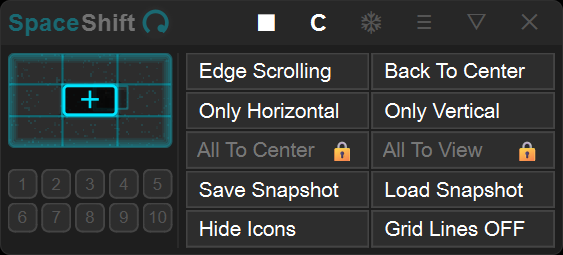
Titlebar
Opacity Knob
Drag up to increase opacity, drag down to decrease. Range: 50-100%. Double-click to instantly reset to 100%. Applies to the main window only, so you can see through it without affecting dialogs. Plays a short animation on launch, then settles at your saved value.
▶ / ■ (Start / Stop Scrolling)
Turn edge and push scrolling on or off. SpaceShift launches with scrolling stopped and the play button gently pulses, so nothing scrolls by accident at startup and you can arrange your windows first; click the play button to begin. Hotkey scrolling and radar dragging still work while stopped, since those are deliberate and never happen by accident. Turns cyan when stopped. Click again to resume.
C (Back To Center)
Move the view to the center panel. Windows stay in place.
❆ (Freeze All)
Freeze all view movement. Click to toggle.
☰ (Menu)
Opens the main menu for layout, settings, and tools. Turns white while open.
▽ / △ (Compact)
Collapse to titlebar. Click again to expand. You can also double-click an empty area of the titlebar to collapse or expand.
Radar
Left-click and Drag
Hold the left mouse button and move to pan the view in any direction. The border pulses while dragging. The cursor is hidden during drag to avoid interfering with the radar.
Right-click
Instantly jumps the view to the clicked panel.
Window Thumbnails
The radar shows real window content captured when each window was opened or moved. Thumbnails update automatically when windows change.
Jump Slots
Jump Slots are ten numbered view bookmarks. Save any position in your virtual space to a slot and return to it instantly at any time, without scrolling. Left-click a filled slot to jump to it. Ctrl + Right-click a slot to save your current view position to it. Ctrl + Right-click again on a filled slot to clear it. Each slot also has a default hotkey, Ctrl + 1 through Ctrl + 0, reassignable in Hotkey Assignment.
Main Panel
Scrolling Mode
Switches between Edge Scrolling and Push Scrolling. The button shows the mode you will switch to when you click it.
Hide Icons / Show Icons
Hide or show desktop icons.
Gather All To Center
Move the view to center and gather all windows. Press and hold the button to fire, so a stray click never triggers it.
Gather All To View
Gather off-screen windows into the current view. Press and hold the button to fire, so a stray click never triggers it.
Only Horizontal / Only Vertical
Restricts scrolling to one axis. Enabling one automatically disables the other. Synced with the corresponding checkboxes in Settings.
Save Snapshot
Save window positions, view location and jump slots as a snapshot. Overwrites the previous one.
Load Snapshot
Restore window positions, view location and jump slots from the last saved snapshot.
Edge Glow On / Off
Show or hide the glow at the edge of the virtual space. Synced with the Show Virtual Space Edge Glow setting.
Grid Lines On / Off
Show or hide virtual space grid lines.
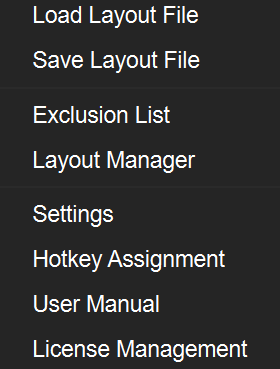
The Menu
Load Layout File
Restores window positions, view location and jump slots from a previously saved layout file. Switches to the grid the file was saved under, and replaces your current snapshot with the one stored in the file.
Save Layout File
Saves window positions, view location and jump slots to a layout file. Your current snapshot is embedded inside the file too.
Exclusion List
Manage apps that should not move when the view scrolls (see its own section below).
Layout Manager
Save and recall window positions for specific apps (see its own section below).
Settings
Opens the full settings panel.
Hotkey Assignment
Reassign scroll and slot jump keyboard shortcuts.
License Management
Activate or remove your SpaceShift license.
User Manual
Opens this manual.
About SpaceShift
Shows the version you are running and the credits.
Settings
Tip: double-click any slider's knob to reset just that slider to its default value.
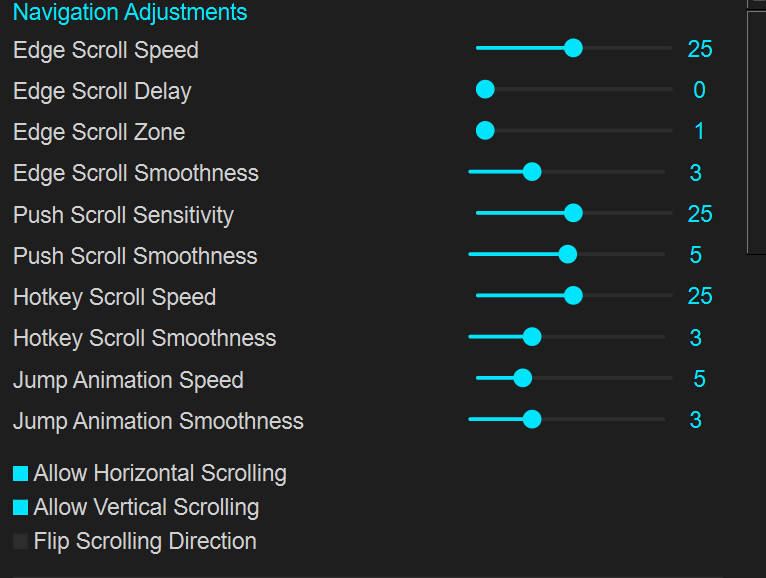
Navigation Adjustments
Controls all view movement. Adjust the Edge and Push scrolling settings, hotkey scroll speed, smoothness and momentum, and slot jump animation speed. Lock horizontal or vertical movement independently. The Edge or Push mode is chosen with the mode button in the main panel.
Edge Scroll Speed
Edge mode. How fast the view moves while edge scrolling.
Edge Scroll Delay
Edge mode. How long the cursor must sit at an edge before scrolling starts.
Edge Scroll Zone
Edge mode. Width of the trigger area at each screen edge, in pixels.
Edge Scroll Smoothness
Edge mode. Acceleration and momentum for edge scrolling. Off is instant, higher is heavier with a longer coast.
Push Scroll Sensitivity
Push mode. How fast pushing against the edge scrolls.
Push Scroll Smoothness
Push mode. Smooths the push so a jittery hand feels smooth. Off is raw, higher is smoother with a short glide.
Hotkey Scroll Speed
How fast the view moves while a scroll hotkey is held.
Hotkey Scroll Smoothness
Acceleration and momentum for hotkey scrolling. Off is instant, higher is heavier with a longer coast.
Jump Animation Speed
How fast slot jumps and Back To Center glide to their target.
Jump Animation Smoothness
Ease of the jump animation. Off snaps instantly with no animation, higher is a gentler ease.
Allow Horizontal Scrolling
Allow horizontal scrolling. Uncheck to restrict movement to vertical only.
Allow Vertical Scrolling
Allow vertical scrolling. Uncheck to restrict movement to horizontal only.
Flip Scrolling Direction
Flip the direction the view moves for edge, push and hotkey scrolling. Radar dragging and slot jumps are not affected.
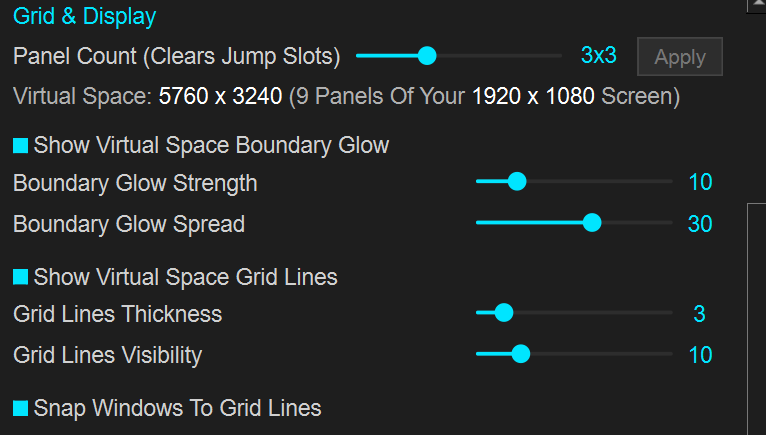
Grid & Display
Controls the virtual grid size and visual overlays.
Panel Count (Clears Jump Slots)
Number of rows and columns in the virtual grid. Changing this clears all saved jump slots.
Show Virtual Space Edge Glow
Show a cyan glow at the edge of the virtual space. Edge Glow Strength controls brightness.
Edge Glow Strength
How bright the edge glow is.
Edge Glow Spread
How far the edge glow extends inward from each edge of the screen.
Show Virtual Space Grid Lines
Draw cyan lines between the panels across your screen as you scroll. Thickness and Visibility control the look.
Grid Lines Thickness
How thick the virtual space grid lines are.
Grid Lines Visibility
Overall brightness of the virtual space grid lines. At the lowest setting the grid lines are off.
Snap Windows To Grid Lines
When you drop a window near a virtual space grid line, snap it to that line.
Grid Lines At Screen Edges Disappear When View Snaps To A Panel
When your view sits exactly on a panel, that panel's own grid lines line up with your screen edges and peek about a pixel into the view. Turn this on and those edge lines disappear while you are parked on a panel, for a perfectly clean screen. They come back the moment the view scrolls off the panel. Grid lines away from the screen edges are never affected.
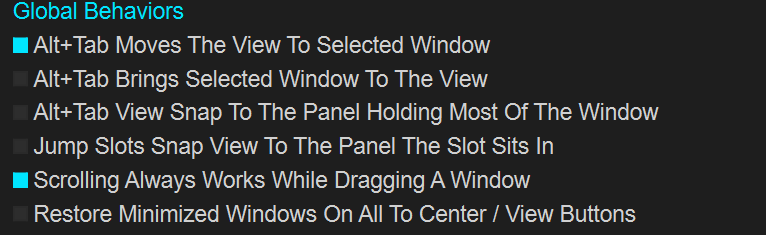
Global Behaviors
Optional behaviours that change how SpaceShift reacts when you switch, drag, or gather a window.
Alt+Tab Moves The View To Selected Window
When you pick a window with Alt and Tab, the view moves to that window so it sits in the center. If the window was minimized it is restored first.
Alt+Tab Brings Selected Window To The View
Instead of the view travelling to the window, the selected window is brought into your current view and centered there, restored first if minimized, while the view stays put. The two Alt+Tab options are one at a time, or leave both off so Alt+Tab does nothing.
Alt+Tab Snap The View To The Panel Holding Most Of The Window
When Alt+Tab moves the view to a window, the view snaps to the panel holding most of that window, so it always lands cleanly inside a panel.
Jump Slots Snap The View To The Panel Where Slot Sits In
When jumping to a saved slot, the view snaps to the panel that slot position sits in, so it always lands cleanly inside a panel.
Scrolling Always Works While Dragging A Window
Even while scrolling is stopped, drag a window to a screen edge and the view scrolls there, carrying the window to the next panel. Works in both Edge and Push modes. Freeze still blocks it.
Keep Maximized Windows Full Size On Scroll / Movement
Windows does not allow a maximized window to be moved, so SpaceShift has to un-maximize one to scroll it. With this on, it un-maximizes to full screen size (matched to your screen's work area) so it keeps looking full while it scrolls, instead of shrinking back to its previous window size. Turn it off for the classic behavior, where a scrolled maximized window returns to its previous windowed size. Off by default.
Restore Minimized Windows On All To Center / View Buttons
Un-minimize and bring minimized windows when using All To Center / View.
Monitors
Note on other monitors: Your main screen is SpaceShift's territory. Windows you keep on any other monitor are left completely alone, never scrolled, gathered, Alt+Tabbed or auto placed, and are not saved into your layouts (their own app remembers where they sit). You can even place a window spanning your main screen and another monitor and it stays put. Drag a window from another monitor onto your main screen and SpaceShift begins managing it; drag it back and it is left alone again. Nothing on another monitor is saved, recalled or moved by SpaceShift on launch or exit; only your main-screen windows are.
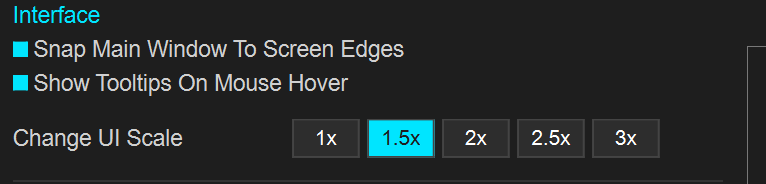
Interface
Appearance and behaviour of the SpaceShift window itself.
Snap Main Window To Screen Edges
Snap the SpaceShift window to screen edges when dragged near them.
Show Tooltips On Mouse Hover
Show tooltip descriptions when hovering over buttons, sliders, and controls.
Change UI Scale
Scales the entire SpaceShift interface. App restarts automatically. Windows and settings are preserved.
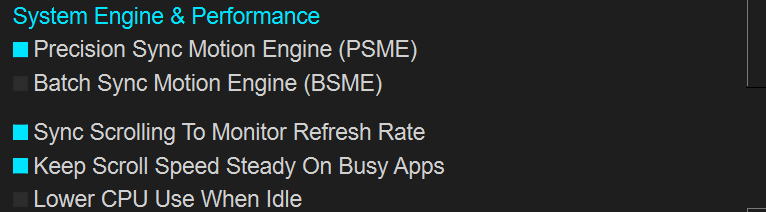
System Engine & Performance
Choose how SpaceShift moves your windows and tune how smoothly it scrolls and how much of your computer it uses.
Precision Sync Motion Engine (PSME)
Moves each window one at a time and waits for each to finish. The proven default, accurate and steady. You can switch engines any time without restarting.
Batch Sync Motion Engine (BSME)
Moves all windows together in a single synchronized batch. Fewer system calls, but still waits for the move to finish.
Sync Scrolling To Monitor Refresh Rate
Paces each scroll frame to your monitor's refresh rate so window movement stays in step with the display. This gives the smoothest motion, especially on high refresh rate monitors. Turn it off only if scrolling feels worse on your setup.
Keep Scroll Speed Steady On Busy Apps
Keeps the scroll speed the same no matter what. It holds a steady pixels-per-second pace whether a heavy app (like WhatsApp or Steam) is slowing things down or a high refresh rate monitor is speeding them up, so the speed sliders feel the same on every setup. Off uses a fixed step per frame instead, which scrolls faster on a high refresh monitor and can momentarily slow down on busy windows.
Lower CPU Use When Idle
Slows down SpaceShift's background checks while you are not scrolling, to use less processor time and save battery on a laptop. Scrolling still starts the moment you move to an edge, just a hair less instantly. Off keeps SpaceShift fully responsive at all times.
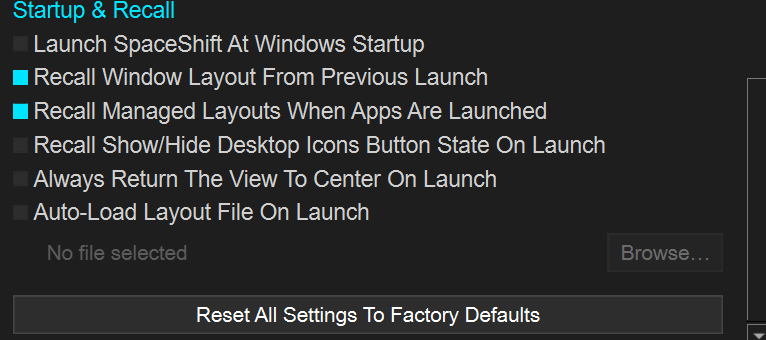
Startup & Recall
Controls what SpaceShift does when it launches, and how it recalls window layouts.
Launch SpaceShift At Windows Startup
Launch SpaceShift automatically when Windows starts.
Recall Window Layout From Previous Launch
Recall window positions, sizes and view location from the previous launch.
Recall Managed Layouts When Apps Are Launched
Auto-place managed apps to their saved spot when they open.
Recall Show/Hide Desktop Icons Button State On Launch
Recall the desktop icons toggle state on launch. Icons always reappear when SpaceShift closes.
Always Return The View To Center On Launch
After your saved layout loads on launch, move the view to the center panel. Windows stay in place.
Auto-Load Layout File On Launch
Load a selected layout file automatically each time SpaceShift starts.
On Exit
When SpaceShift closes it returns your windows to where they were before it launched, and brings any off-screen window back on screen, so nothing is ever left off-screen.
Reset All Settings To Factory Defaults
Restore all settings to defaults. UI Scale, hotkeys and saved layouts are not affected.
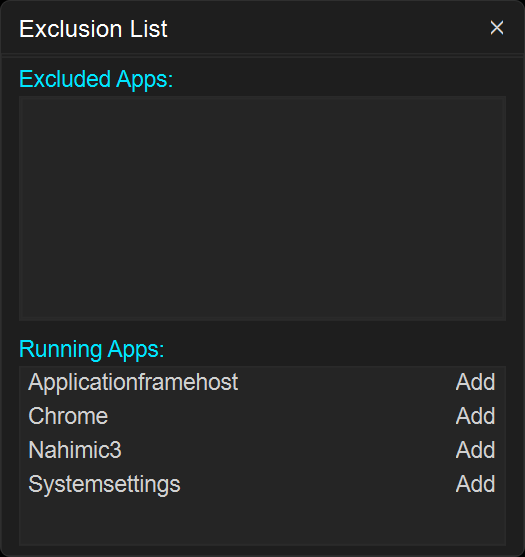
Exclusion List
Manage apps that SpaceShift should leave completely alone. Add any running app from the list. An excluded app is left entirely to Windows: it is never moved by scrolling, the Gather buttons, or Alt+Tab, nor by any layout, snapshot, previous session, or exit revert, and it does not appear in the radar. Its position is still saved into your layouts, snapshots and the Layout Manager, so if you remove it from the list later it is restored normally.
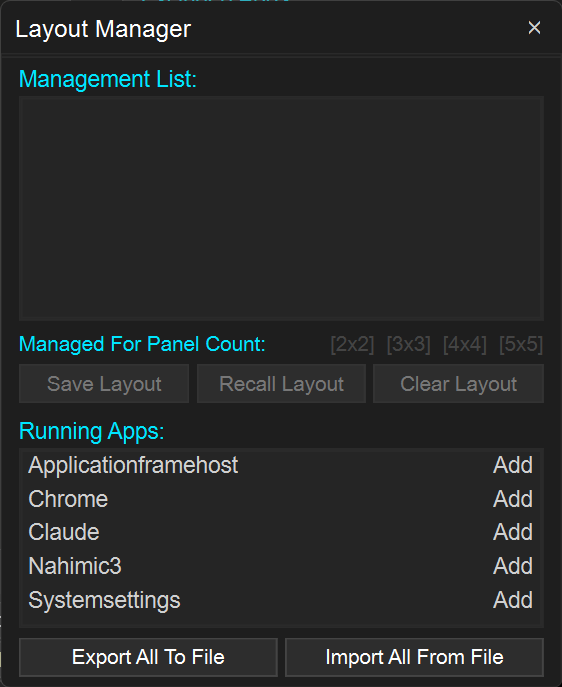
Layout Manager
Save and recall window positions for specific apps, kept independent of snapshots and layout files. Add an app from the Running Apps list, then click its name under Managed Apps to open its detail page. Arrange the app's windows the way you want, then click Save Current App Layout For [NxN] to store them for the current grid size. The app will go to its saved spot automatically when it opens. Click Reload App Layout Now to place its open windows immediately. Each grid size keeps its own layout, and each app window is saved separately. Use Clear to remove a saved grid layout, and the X to stop managing an app. Use Export to File to back up your saved layouts and Import from File to load them back; importing keeps your existing apps and updates any that match. If an app is also in the Exclusion List it is marked Excluded ! and its saved layout is not auto-applied, because excluded apps are never moved automatically. Its layout data is still saved.
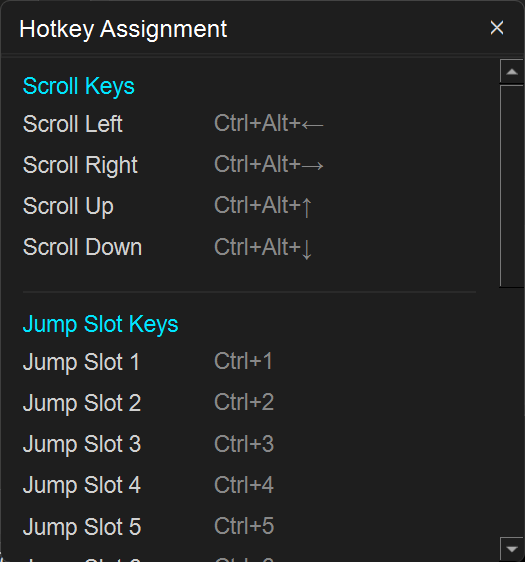
Hotkey Assignment
Reassign any shortcut: click a field, press your desired key combination, then click Save Hotkeys. Scroll keys, panel jump keys, jump slot keys and the function keys (Toggle Scrolling, Back To Center, Freeze All, Toggle Grid, Lock Horizontal, Lock Vertical) can all be reassigned.
Default Hotkeys
Scroll Left / Right / Up / Down
Ctrl + Alt + Arrow Keys
Momentary Scroll
Hold Ctrl + Alt to scroll with your mouse at the screen edges even when scrolling is stopped; let go and it stops. Handy for a quick scroll without pressing Start.
Jump Panel Left / Right / Up / Down
Alt + Shift + Arrow Keys. Jumps the view exactly one panel over in that direction. At the edge of the grid it wraps around to the opposite edge and keeps looping.
Jump to Slot 1-10
Ctrl + 1 through Ctrl + 0
Toggle Scrolling
Ctrl + Alt + S. Starts or stops scrolling, the same as the Start/Stop Scrolling button.
Back To Center
Ctrl + Alt + C. Moves the view to the center panel.
Freeze All
Ctrl + Alt + F. Toggles Freeze on and off.
Toggle Grid
Ctrl + Alt + G. Shows or hides the virtual space grid lines.
Lock Horizontal
Ctrl + Alt + H. Locks the horizontal axis so only vertical scrolling works.
Lock Vertical
Ctrl + Alt + V. Locks the vertical axis so only horizontal scrolling works.
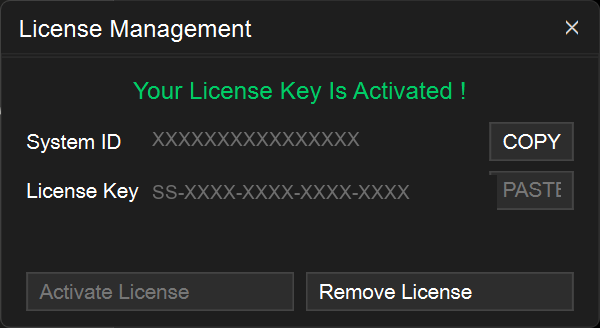
License Management
Activate
Open License Management from the menu. Copy your Machine ID, send it to the developer, then paste the received key into the License Key field and click Activate License.
Remove
Click Remove License in License Management and confirm. You can re-enter a valid key at any time.
Troubleshooting
Nothing happens when I start SpaceShift.
If SpaceShift cannot start it now tells you why in a message, and writes the details to a SpaceShift_Error.log file next to the program. If a message says SpaceShift is already running, look for its icon in the system tray; if it is not there, end any SpaceShift process in Task Manager and start it again. If you see no message at all, your antivirus may be blocking SpaceShift silently: check Windows Security, Protection history, and allow SpaceShift. SpaceShift needs 64-bit Windows 10 version 1809 or newer.
Windows are not moving when I scroll.
Make sure the view is not frozen (the titlebar Freeze button turns cyan when active). Also check the Exclusion List in the menu; the application may be excluded from view movement.
The view will not scroll at all.
The view may be frozen. The titlebar Freeze button (❆) turns cyan when active. Click it to toggle, or use the system tray menu.
A window has disappeared off-screen.
Use Gather All To View in the main panel to bring all off-screen windows back into the current view. Press and hold the button to fire it.
Scrolling activates by accident.
In Edge Scrolling, increase the Edge Delay slider so the cursor must sit at the edge longer before scrolling starts. You can also reduce sensitivity by increasing the Edge Zone value.
Hotkeys are not working.
Another application may have registered the same key combination. Open Hotkey Assignment from the menu and assign a different combination, then click Save Hotkeys.
Radar drag is not working.
Check that the view is not frozen (the titlebar Freeze button turns cyan when active).
Windows restored to wrong positions on launch.
Window positions are matched by title. If a window was renamed, closed, or reopened since the previous launch, it will not be matched and will stay in its current position. The view position is always restored regardless.
Snapshot loads but some windows do not move.
Windows are matched by title at the time the snapshot was saved. Any window that has since been renamed or reopened will be skipped.
An app in the Layout Manager does not move to its spot.
Make sure the app has a saved layout for the current grid size in the Layout Manager.
I cannot drag a window to another panel.
Drag the window to a screen edge and the view scrolls, carrying the window to the next panel. If nothing moves, the view may be frozen (the titlebar Freeze button is cyan) or the app may be in the Exclusion List.
After loading a snapshot, one app jumped to a different spot.
Layout Manager apps are re-applied to their own saved spot after a snapshot or layout loads. Remove the app from the Layout Manager to let the snapshot position stand.